
This article will discuss the simplest way to make a table in Google Sheets.
Make a table in Google Sheets
Follow the below steps.
- Open your Google sheet that contains your data.
- Select the complete data. Press and hold your left mouse, click, and drag to select the complete data.
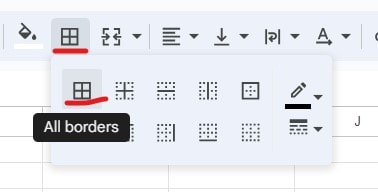
3. Click on the Borders option –> Then choose the All Borders option.
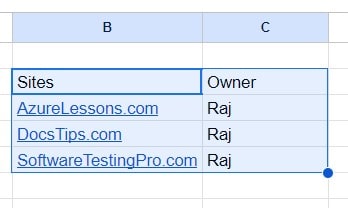
Congratulations !! You created the table successfully. See the screenshot below.

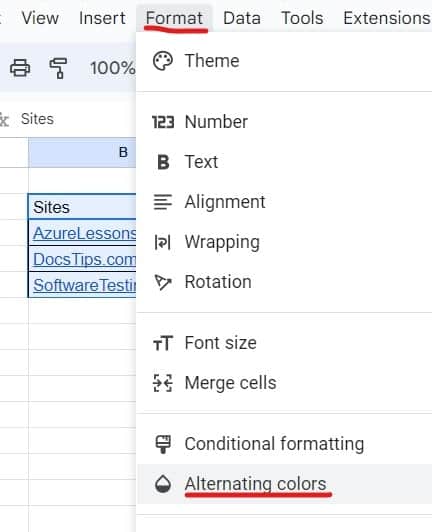
For a better look, Select the complete table –> click on the Format menu, –> Choose the Alternating Colors option, as shown in the screenshot below.
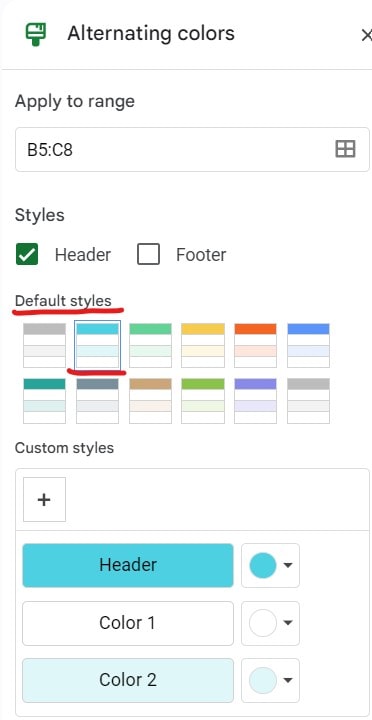
Choose a default style based on your choice –> Click the Done button.
Now, the beautiful table looks like below, and you are done.

You may also like following the articles below.
Conclusion
It is so easy to make a table in Google Sheets using the information mentioned in this article. Thanks for reading this article !!!

I am Rajkishore, and I have over 14 years of experience in the Software Industry. For a long time, I have been using Google Docs, Google Drive, and Google Sheets for my document usage, and I am sharing all the tips and tricks, the challenges I have come across, and their solutions to use Google Docs for your day-to-day use. I hope you will learn from these practical Google Docs tutorials. Read more.