
The formatting of your .docx file may look different in Google Docs because .docx files were heavily formatted in Microsoft Word. So, it is difficult to convert Word to Google Docs without loss of formatting. But it is possible using the information below.
Want to open your Google Docs document in Word without changing the existing formatting? Then, download the document as an RTF file and open the RTF file with Microsoft Word.
It’s easy; just click on the File menu > Select “Download as RTF.” option. See the screenshot below.
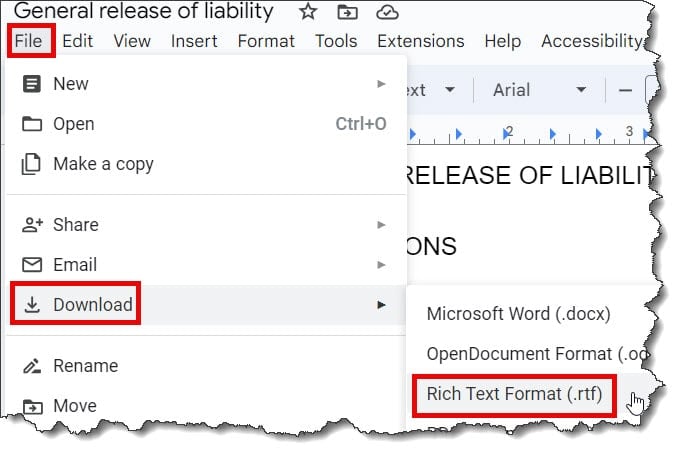
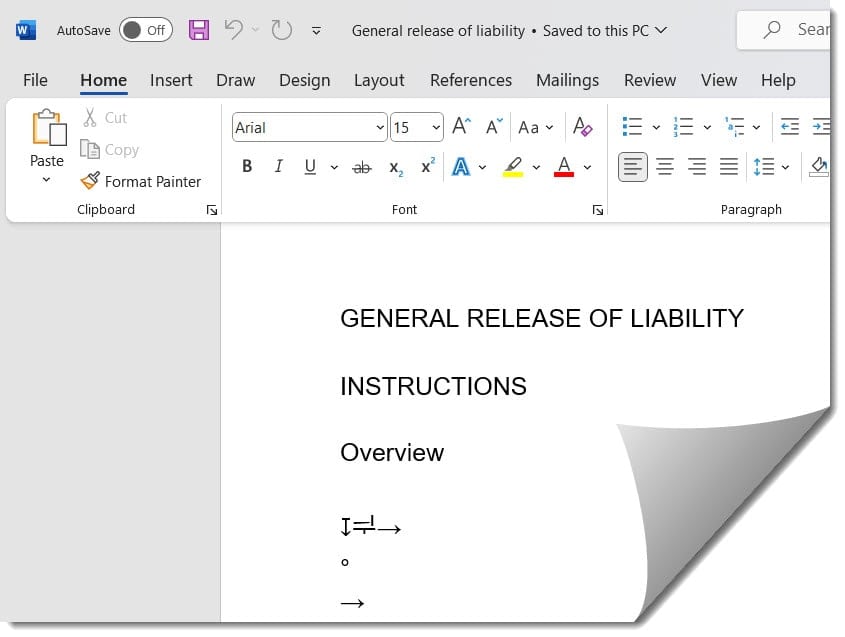
Now open the RTF file in Microsoft Word and save it as a .docx file. This will preserve the formatting of your file. Check out the below screenshots for your reference.
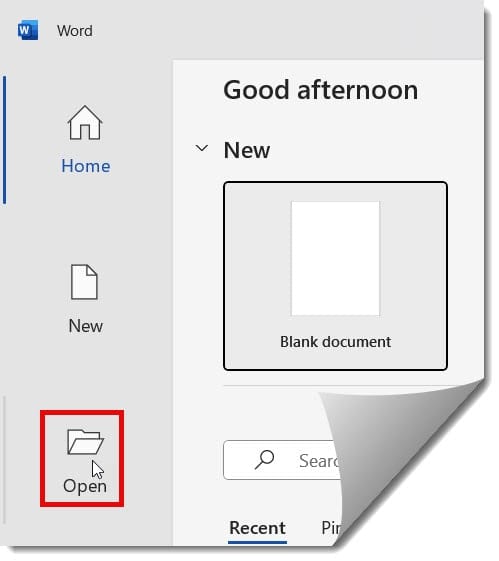
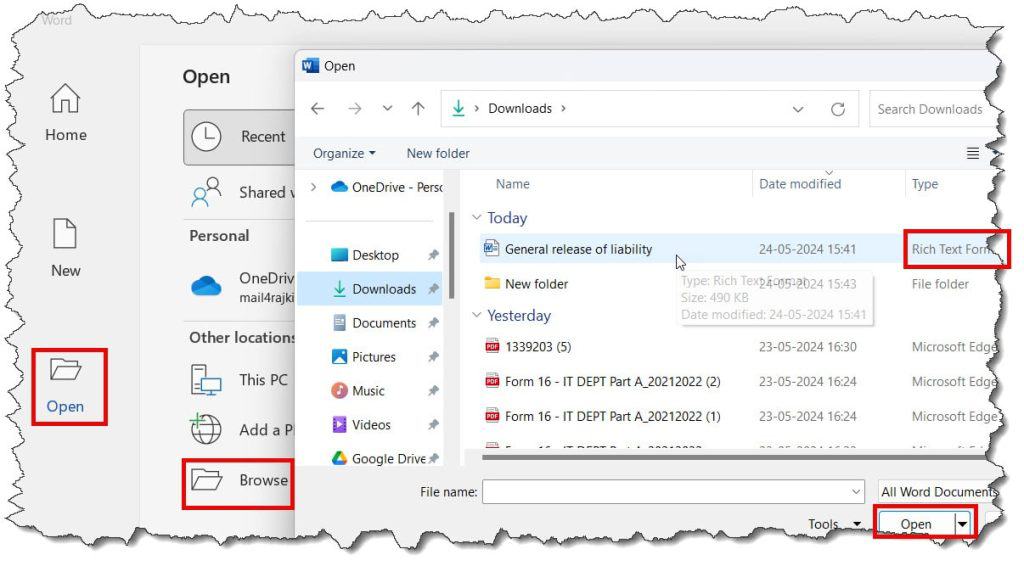
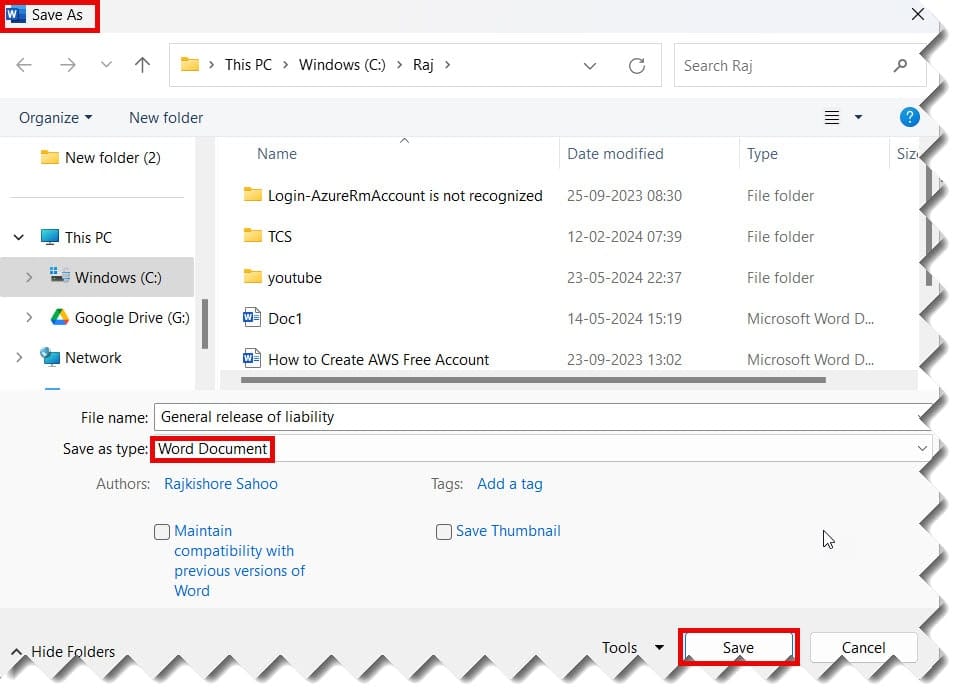
Now, you can see my Google Docs document has been converted to Word successfully without loss of formatting. Check out the screenshot below for reference.
Bulk convert Google Docs to word
May 24, 2024 by Rajkishore Sahoo
If you wish to convert multiple Google Docs documents as a .docx file, Google Drive will help you to do it. To do this,
- Open your Google Drive. Click on a Google Docs file and press “shift + Down arrow” to select more than one file at a time. The selected Google Docs files will appear in blue.
- Now right-click on the selected files and then click the “Download” option. Check out the screenshot below.

3. Google Drive will convert all the selected Google Docs documents into .docx files, pack them, and download them into a ZIP file. You can unzip these files to access all of your .docx files.
Video Tutorial
You may also like following the articles below.

I am Rajkishore, and I have over 14 years of experience in the Software Industry. For a long time, I have been using Google Docs, Google Drive, and Google Sheets for my document usage, and I am sharing all the tips and tricks, the challenges I have come across, and their solutions to use Google Docs for your day-to-day use. I hope you will learn from these practical Google Docs tutorials. Read more.