
In Windows, you can print two pages on a sheet. To do so, follow the below steps.
1. Open your Google Docs document that is in PDF format that you wish to print.
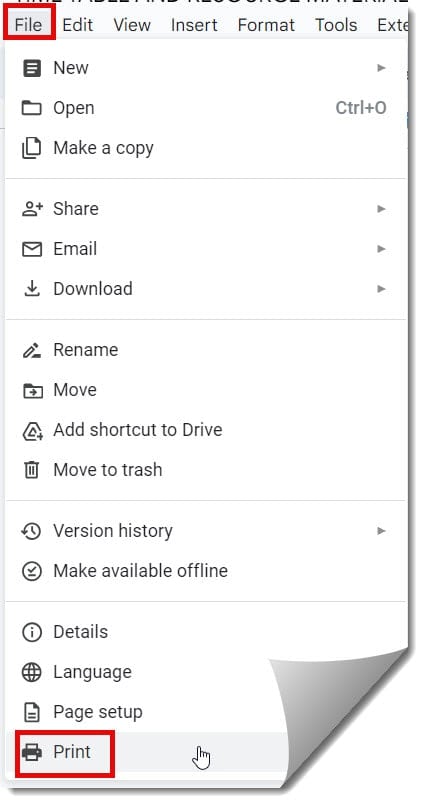
2. Click on the File menu —> Choose the Print option.
3. Choose 2 from the Pages per sheet dropdown from the ‘Print’ pop-up.
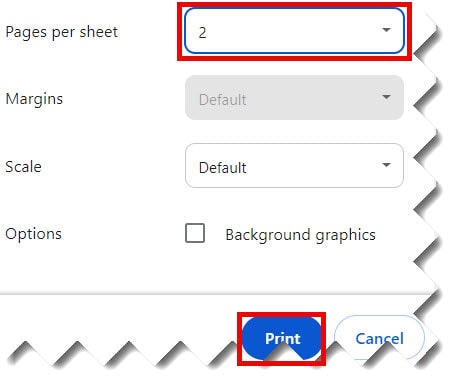
4. Finally, click on the ‘OK’ button for printing your Google Docs document.
Note: If you don’t see the Zoom section on the Print pop-up window, click on the Properties button –> select the Finishing tab to get the same option.
You may also like following the articles below
- Why Can’t I Print From Google Docs
- How to print double-sided on Google Docs
- Print Google Docs With Comments

I am Rajkishore, and I have over 14 years of experience in the Software Industry. For a long time, I have been using Google Docs, Google Drive, and Google Sheets for my document usage, and I am sharing all the tips and tricks, the challenges I have come across, and their solutions to use Google Docs for your day-to-day use. I hope you will learn from these practical Google Docs tutorials. Read more.