

If you’re looking for the easiest ways to print multiple pages on one page in Google Docs, this article is for you! Let’s dive deep into this article to learn how to print multiple pages on one page Google Docs.
Follow the below steps.
1. Open Google Docs and sign into your account. Open the Google Docs document you want to print multiple pages on a single page.
2. Go to the menu bar and click on the ‘File’ option and then select ‘Print’. Or you can use the shortcut ‘Ctrl+P’ on your keyboard to open the print panel.

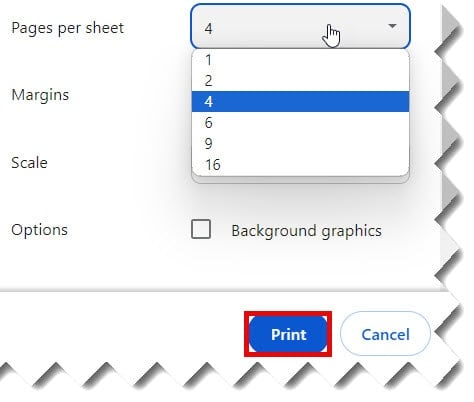
3. In the print panel window, there is a field named ‘Pages per sheet’ label in the ‘Print’ section. This field will let you choose the number of pages you wish to print on a single sheet. By default, the value of the “Print section” is set to 1 page per sheet. But you can change the number of pages to be printed on a single page by clicking on the dropdown button.

Google Docs allows you to print 16 pages maximum on a single sheet. You can choose the number of pages you wish to print on a single page based on your requirements. To do so, increase or decrease the dropdown button.
4. You can check how the multiple pages of the Google Docs document are aligned on a single page in the preview section.
5. Once you’re satisfied with the number of pages from the preview, click on the ‘Print’ button at the bottom of the page to print the document. Check out the screenshot below.
This method will print multiple pages of Google Docs documents on one page.
Using Acrobat Reader
You can also use third-party tools like Acrobat or Reader to print multiple pages of Google Docs documents on one page. First, you can save and download the Google Docs document as a PDF, and then you can use the PDF document to print multiple pages of a PDF onto a single piece of paper. This process is called N-up printing.
1. Open Google Docs and open the document you want to print on one page.
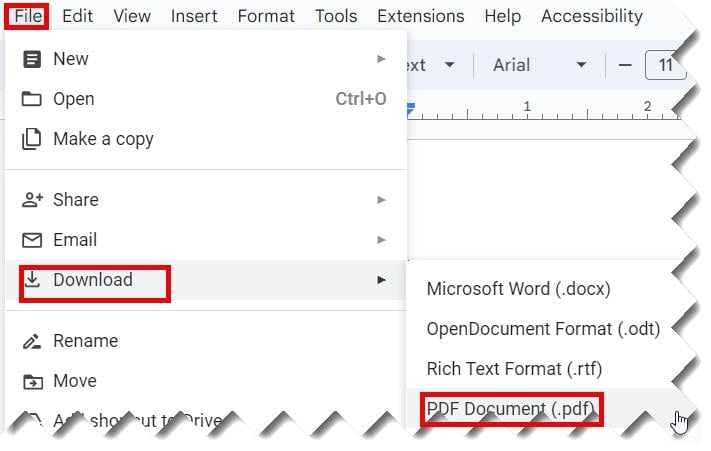
2. Go to the menu bar and click File > Download > PDF document (.pdf)
3. Now open the Adobe Acrobat Reader and click on the “File” menu –> Choose Print.
4. Choose the “Multiple Pages Per Sheet” option on the “Page Scaling” window.
5. Choose the desired value that matches the number of pages in your Google Docs document from the “Pages Per Sheet” dropdown.
6. On the “Page Order pop-up, you can also set the alignment of multiple pages on one page with Horizontal Reversed, Horizontal, vertical, etc. Once done, click ‘Print’.
This will print the multiple pages of Google Docs document on one page.
You may also like following the articles below
- Why Can’t I Print From Google Docs
- How to print double-sided on Google Docs
- Print Google Docs With Comments
- How to show non-printing characters in Google Docs
- How to print PDF 2 pages on one sheet
Voila! You can now save the paper and space by printing multiple pages of Google Docs documents on one page.

I am Rajkishore, and I have over 14 years of experience in the Software Industry. For a long time, I have been using Google Docs, Google Drive, and Google Sheets for my document usage, and I am sharing all the tips and tricks, the challenges I have come across, and their solutions to use Google Docs for your day-to-day use. I hope you will learn from these practical Google Docs tutorials. Read more.