

In this article, we will discuss the quick steps to insert images in Google Docs.
Table Of Contents
How to insert images in Google Docs
Google Docs offers several additional options for inserting images. You can insert an image in Google Docs by simply following the below steps.
Step 1: Open Google Docs and sign in to your account
Step 2: Open a new document or place the insertion point in the Google Docs document where you want to insert the image.
Step 3:Click Insert and then select ‘Image’. You can see a list of options:
- Upload from computer
- Search the web
- Drive
- Photos
- By URL
- Camera

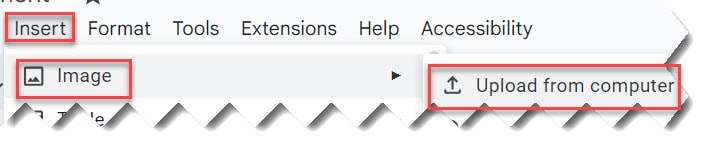
Upload from computer
If you want to upload an image from your computer, then select “Upload from computer”. Select the image you’d like to use and then click Open.
Search the Web
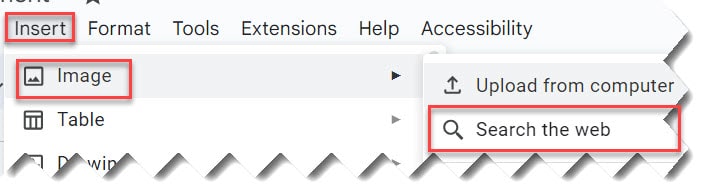
You can search for images in Google and insert those images in your Google Docs document. Even though Google tries to filter the results to only show free images, it is important to go to the source of an image to check the copyright license before inserting them into your document.
To search for an image, place the insertion point in the document where you want to insert the image and Click Insert > Image > Search the Web. A search pane will appear on the right side of the screen. Search for the desired search term on the screen and then press Enter.
Select the desired image from the search results and click Insert. The selected image will appear in your Google Docs document.
By URL
You can use this option is useful if you have the URL of the desired image. Click Insert > Image > By URL to insert the image into your document. After reviewing the preview of the image, click insert.

Google Photos
You can also insert images from the Google Photos application. You have options to choose from photos directly or albums. Click Insert > Image > Photos to insert the Google Photos image into your Google Docs document.

Google Drive
If you have images stored in your Google Drive account, clicking Google Drive will give you access to these images. Click Insert > Image > Drive. A pop-up will be opened on the right side of your screen. You have options to choose and insert images from the recently uploaded images, images shared with you, and photos stored by you.

Camera
You can use the Camera of the device and click the picture to insert it.

Insert images in Google Docs – Video Tutorial
You may also like following the below articles
Voila!! it is so easy to insert images in Google Docs. Thanks for reading this article !!!

I am Rajkishore, and I have over 14 years of experience in the Software Industry. For a long time, I have been using Google Docs, Google Drive, and Google Sheets for my document usage, and I am sharing all the tips and tricks, the challenges I have come across, and their solutions to use Google Docs for your day-to-day use. I hope you will learn from these practical Google Docs tutorials. Read more.