
Follow the below steps.
- Open your Google Docs document where you wish to insert the grid.
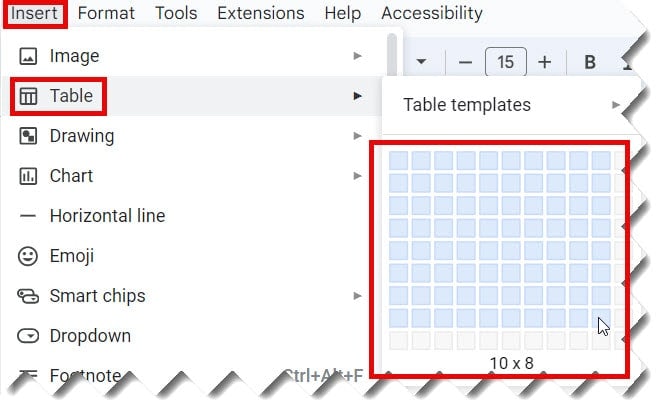
- Click on the Insert menu, select Table, and Choose the 10 x 8 table templates or the number of rows and columns based on your needs.
3. Expand the highlighted row; drag downward to expand.
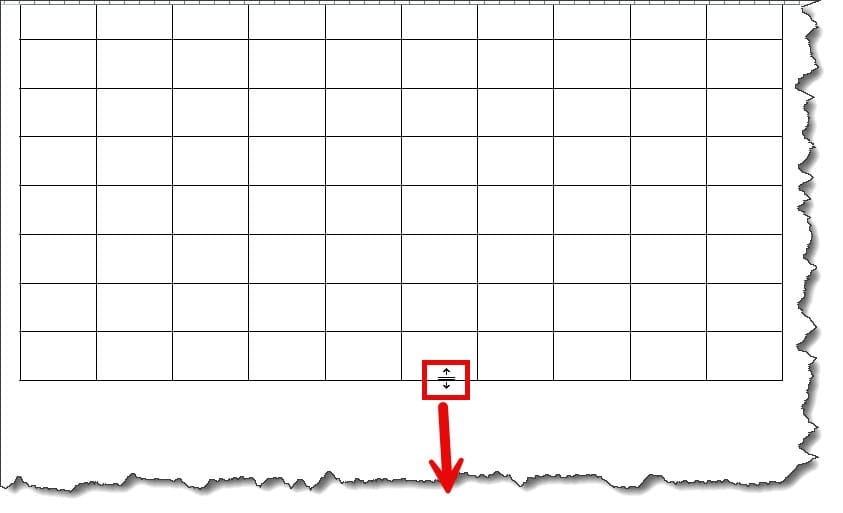
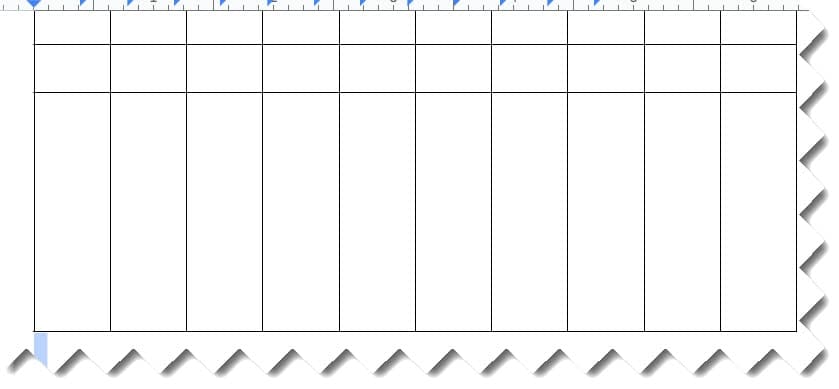
Now, it will look like below.
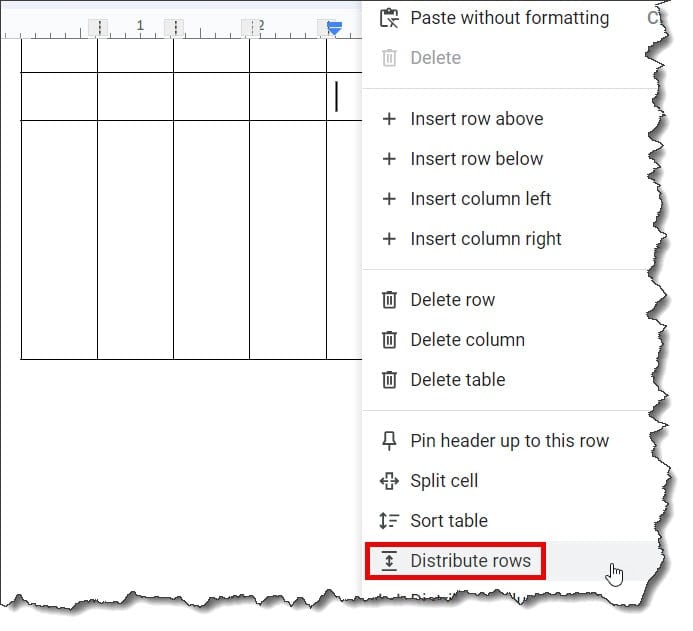
4. Right-click anywhere on the table and select the Distribute rows option.
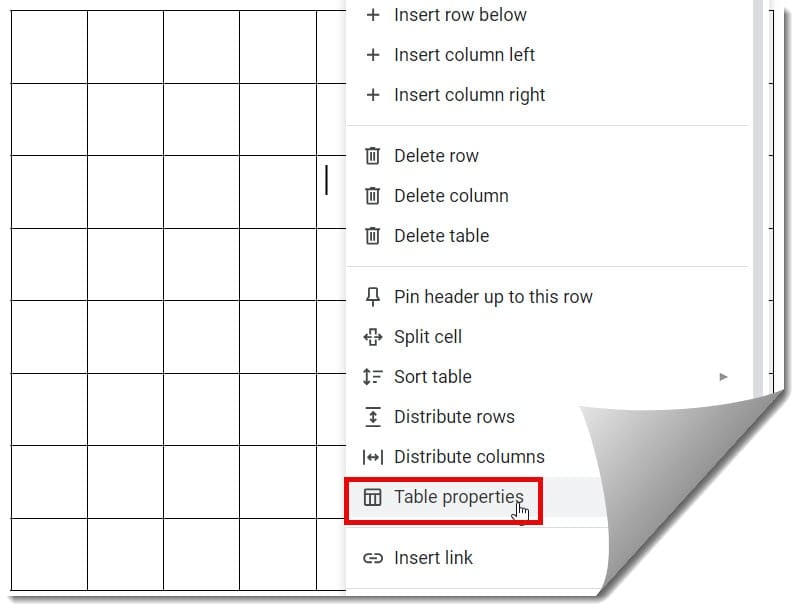
5. Right-click on the table –> Select the Table Properties option.
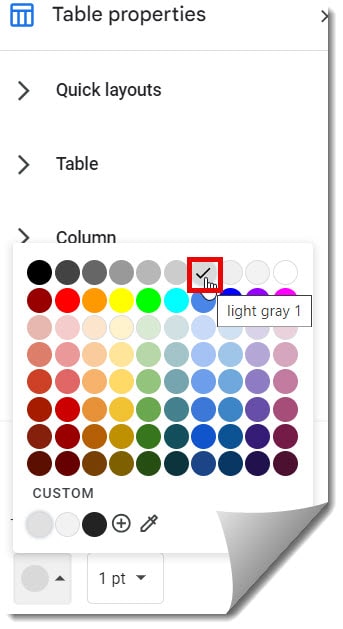
6. Expand color node –> choose the border color as light gray 1, as shown in the screenshot below.
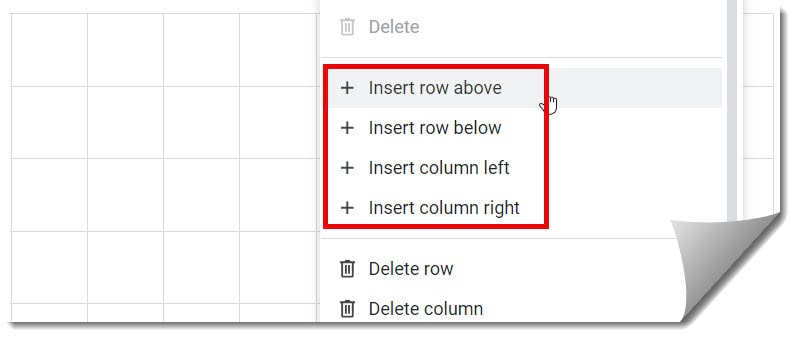
7. Right-click on the table and click on the insert row or insert column options to add more grid lines based on your requirements.
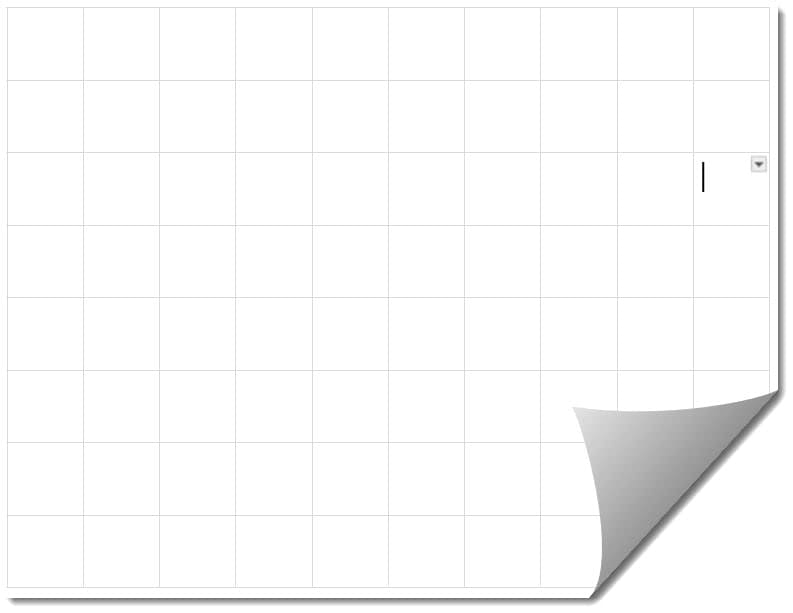
8. Now, it is ready with the Grid lines. Check out the screenshot below.
Video Tutorial
You may also like following the articles below.

I am Rajkishore, and I have over 14 years of experience in the Software Industry. For a long time, I have been using Google Docs, Google Drive, and Google Sheets for my document usage, and I am sharing all the tips and tricks, the challenges I have come across, and their solutions to use Google Docs for your day-to-day use. I hope you will learn from these practical Google Docs tutorials. Read more.