
The main aspect of Google Docs is its capability to share documents, and you can edit those Google Docs documents together collaboratively in real life across the globe with zero hassle. The collaborators of your Google Docs document can comment, view, and make changes to the Google Docs document, but it all depends upon the permissions you provide to them. So what if you want to make your collaborators only view your Google Docs document? It’s pretty simple! You can make Google Doc view only mode with just a click.
Table Of Contents
Approach-1: Using Google Docs view only link
Visibility Options control only Google Docs view. By default, Google Docs documents in Google Drive are private. However, you can make your documents visible to certain collaborators, anyone with the link to the document, or even the public on the web.
- You can see the “Private to only me” pop-over showing that your current Google Docs document is private by default when you mouse hover over the blue-colored “Share” button that is present at the top right corner of your Google Docs document.

- When you click the “Share” button, the “Share with people and groups” screen appears.
To share your Google Docs document, you can type the names of people or their email addresses.

Google Docs view only link
- You can choose “Anyone with link” from the Visibility options to provide access to a large group of specific people.
- You can turn on the link visibility options on the “Share with people and groups” window. Anyone with a link to your document can access it once you turn on the link visibility option. It is restricted to “only people added can open with this link” by default in Google Docs.
- To turn on the Link Sharing option, click the inverted triangle “dropdown” icon next to the restricted option. Then click on “Anyone with link.”

- By selecting this option, it is clear that anyone on the internet with this link can view it. You can see that the “Viewer” option is selected by default. This default option ensures that Editing access is changed to view only so anyone can view your Google Docs document.
- You can change the settings of viewers, editors, and commenters by using the “Share with people settings” window.
- On the “Share with people and groups” window, you will see a “settings icon” in the right corner; click on that “settings icon.”
- The “Share with people settings” screen allows you to change people sharing settings. The two options are
- Editors can change permissions and share
- Viewers and commenters can see the option to download, print, and copy
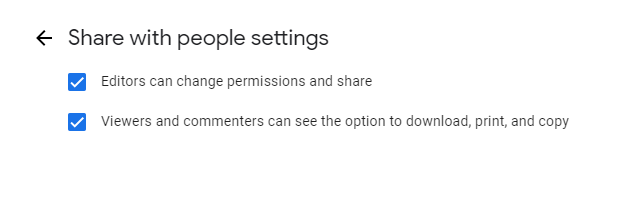
- These two options are checked by default. To make Google Docs view only, you must check out these two options.
- This is how it restricts your editors from changing permissions and sharing. Viewers and commenters can’t see the option to download, print, and copy, ensuring that Google Docs are view-only.
Approach-2: Using Google Drive
Google Drive is a boon for collaborators who want to share and modify Google Docs documents with other users. If you share a Google Docs view-only file, you can restrict users from making a copy, downloading it locally, or printing it out. You can also prevent other editors from adding other people without your knowledge.
But what if you want to make Google Docs view only a bunch of Google Docs files?
You can make Google Docs view only for a bulk of Google Docs documents from Google Drive without opening your Google Docs.
- You can do this by opening your Google Drive and adding all your Google Docs files to a folder.
- To do this, Click New > Folder
- Name your folder and insert your Google Docs files.
- Now Double click on your folder
- Click on the drop-down arrow present next to the folder name.
- Click on the “Get sharable link” option. This will open up the “share with people and groups” screen.

7. Click the inverted triangle “dropdown” icon next to the restricted option to turn on or enable the Link Sharing option.
8. Then, you need to click on the “Anyone with link” option, and you will find that the default option is “Viewer.”
9. This is the default option, which ensures that only authorized people can view your Google Docs document.
Check out: How to turn off editing mode in Google Docs
And that’s it! You can now make Google Docs view-only mode using the methods mentioned earlier with ease in no time and protect a Google Doc from editing.

I am Rajkishore, and I have over 14 years of experience in the Software Industry. For a long time, I have been using Google Docs, Google Drive, and Google Sheets for my document usage, and I am sharing all the tips and tricks, the challenges I have come across, and their solutions to use Google Docs for your day-to-day use. I hope you will learn from these practical Google Docs tutorials. Read more.