
In this article, we will discuss how to split a table in Google Docs.
Table Of Contents
How to split table in Google Docs
Well, it’s pretty easy to split a table in Google Docs using the below quick steps.
As a first step, let’s add a table to Google Docs.
- Click on the Insert menu –> select table –> Choose 4 X 4 table.

2. Select the last two rows of the table.

3. Now, drag the selected two table rows down. Now, it should look like below.

4. Now select again the two rows of the first table as explained in Step 2. Right-click on the selected table –> choose the Delete 2 rows option as shown below.
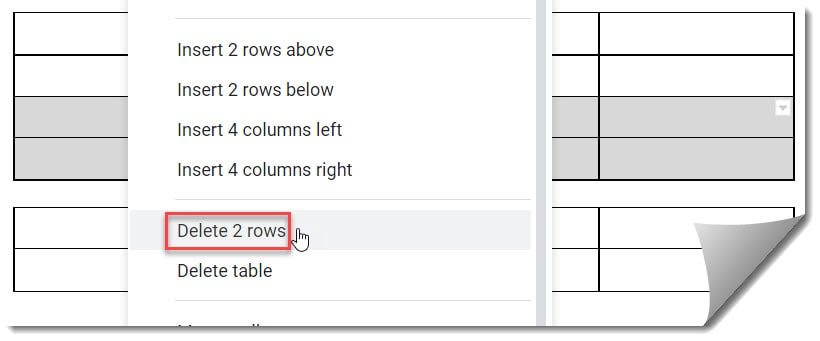
5. Now, we can split the table successfully, which looks like below.

You may also like following the articles below
- How to copy a table in Google Docs
- How to make table smaller in Google Docs (An Easy Guide)
- How to make a table fit on one page in Google Docs
Wrapping Up
Avoila!! It is so easy to split table in Google Docs. Thanks for reading this article !!!

I am Rajkishore, and I have over 14 years of experience in the Software Industry. For a long time, I have been using Google Docs, Google Drive, and Google Sheets for my document usage, and I am sharing all the tips and tricks, the challenges I have come across, and their solutions to use Google Docs for your day-to-day use. I hope you will learn from these practical Google Docs tutorials. Read more.