
Follow the steps below to restore the deleted folder to Google Drive.
1. Navigate and log in to Google Drive.
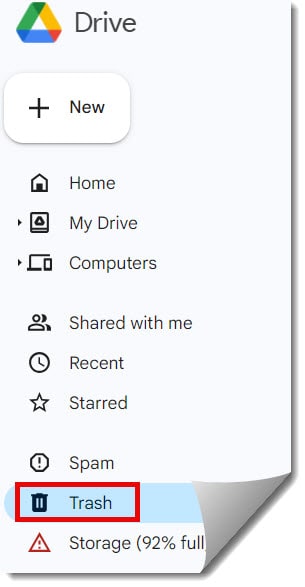
2. Click on the Trash link from the left navigation.
3. Right-click on the required folder and click on the Restore option, as shown in the screenshot below.

Alternatively, you can click on the More Actions menu and then click on the Restore option.

The selected folder has been restored successfully, as shown in the screenshot below.

You may also like following the articles below.
- How to rename a folder in Google Drive
- How to star a folder in Google Drive
- How to create a folder in Google Docs?
- How To Extract Rar File In Google Drive

I am Rajkishore, and I have over 14 years of experience in the Software Industry. For a long time, I have been using Google Docs, Google Drive, and Google Sheets for my document usage, and I am sharing all the tips and tricks, the challenges I have come across, and their solutions to use Google Docs for your day-to-day use. I hope you will learn from these practical Google Docs tutorials. Read more.