
When you type in Google Docs Columns, the cursor moves to the next column only after finishing the first column. You can’t move over the second or third column until you finish the first column.
- To type in another column, you can insert a column break.
- First, locate the area where you wish to insert the break and place your blinking cursor to insert a column break.
- This will become the endpoint of your current column, and any text after this point will move into the next column.
- To add a column break, right-click on the position of your cursor, then click the “Column break” option from the menu that appears.
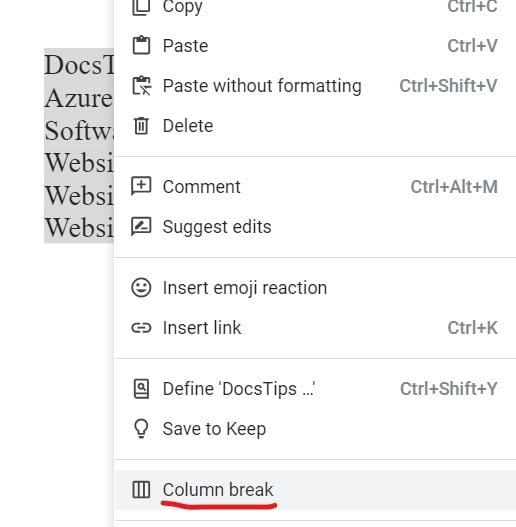
- As soon as you click on “Column break”, a column break will be inserted, and all text after this inserted column break will move into the second or third column.

Or,
An important point to note here is the behavior of the Google Docs column, i.e., how it works is the currently selected text continuously flows until the remaining page, and once finished, it moves to the second column.
To overcome this, if you want to use two separate columns, you should use a table for a better experience.
You may also like following the articles below
Conclusion
This article discussed how to switch between columns in Google Docs.

I am Rajkishore, and I have over 14 years of experience in the Software Industry. For a long time, I have been using Google Docs, Google Drive, and Google Sheets for my document usage, and I am sharing all the tips and tricks, the challenges I have come across, and their solutions to use Google Docs for your day-to-day use. I hope you will learn from these practical Google Docs tutorials. Read more.