
You receive a PDF proposal with an outdated date and a paragraph that needs rewriting. You can read it in your browser, but clicking the text does nothing. Without the original Word document, making a simple correction suddenly feels complicated.
Quick-Answer Summary:
To edit PDF in Google Docs, upload the PDF to Google Drive → right-click the file → select Open with > Google Docs → edit the converted document → select File > Download > PDF Document (.pdf). Google Docs creates an editable copy rather than changing the original PDF, so check the formatting before sharing your revised file.
Learning how to edit PDF in Google Docs gives you a practical option for text-focused files. Upload the PDF to Google Drive, open it with Google Docs, edit the converted document, and download a new PDF. The important limitation is that Google Docs converts the file—it does not directly edit the original PDF’s layout.
This guide explains the process, how to repair conversion problems, and how to protect your original file and sharing settings.
Understand What Google Docs Can and Cannot Edit
Google Drive stores and organizes files. Google Docs is the editor you use to change the converted text.
Opening a PDF in Drive’s preview is not the same as opening it in Google Docs. The preview displays the existing PDF; conversion creates an editable document.
Google uses optical character recognition, or OCR, to recognize text in scanned pages and images. Recognition and formatting are separate jobs: the words may convert correctly while their arrangement changes.
| PDF content | What to expect |
|---|---|
| Simple paragraphs | Usually the easiest content to revise |
| Scanned text | Requires OCR and careful proofreading |
| Tables and columns | May lose their structure or reading order |
| Forms | Interactive fields are not preserved as a working PDF form |
| Signed documents | Conversion is not a signature-preserving editing workflow |
| Designed brochures | Often need substantial layout reconstruction |
Google specifically warns that lists, tables, columns, footnotes, and endnotes are unlikely to be detected correctly during conversion.
For a short letter, that trade-off may be reasonable. For a signed agreement or a carefully designed publication, request the source document or use an approved PDF-editing workflow instead.
Pro Tip: Convert one representative page before committing to a long document. A page containing a table and an image reveals more than a plain cover page.
Prepare the PDF Before Uploading
Keep an untouched original. It gives you a reference for proofreading and a recovery path if conversion produces unusable results.
Before uploading:
- Confirm you have permission to modify the document.
- Save the original in an appropriate folder.
- Check whether the PDF contains selectable text or scanned images.
- Inspect page orientation and scan quality.
- Confirm that the chosen Google account is approved for the content.
For OCR conversion, Google recommends a file of 2 MB or smaller, upright pages, sharp images, clear contrast, and text at least 10 pixels high. This is conversion guidance, not Google Drive’s general upload-size limit.
Do not compress a scan so aggressively that the words become blurry. If necessary, process a smaller authorized portion rather than degrading the whole document.
For work or school files, follow organizational storage rules. Uploading a confidential client report to a personal account is not a suitable workaround for restricted access.
Pro Tip: Use a clear original filename, such as
Proposal-Original.pdf, and a different working name. That prevents an edited copy from being mistaken for the unchanged source.
How to Edit PDF in Google Docs: Step-by-Step
The conversion workflow is best completed in a desktop browser. Sign in to the Google account where you want the files stored.
Step 1: Upload the PDF to Google Drive
- Open Google Drive.
- Select New.
- Select File upload.
- Choose the PDF from your computer.
- Wait until the upload finishes.
You can also drag the PDF into the intended Drive folder.
Uploading stores the PDF; it does not convert it yet. If your team organizes documents by project, upload directly to the correct approved folder rather than moving confidential files around later.
See how Google Drive folders work for file-organization guidance.
Step 2: Open the PDF With Google Docs
- Find the uploaded PDF in Drive.
- Right-click it.
- Select Open with.
- Select Google Docs.
- Wait for the converted document to open.
Check out the screenshot below for your reference.
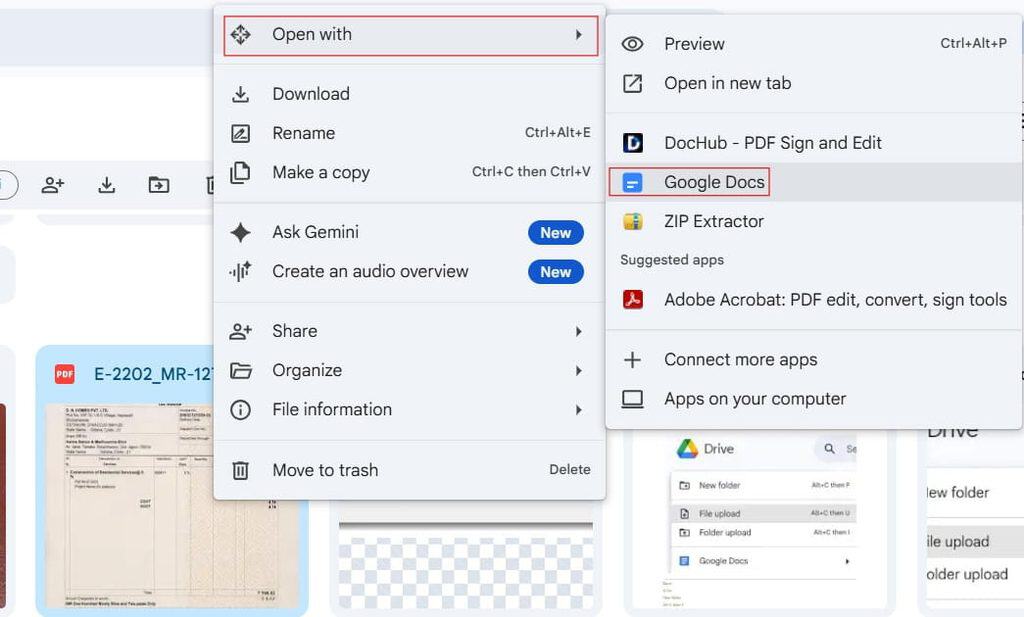
The PDF remains a separate source file. Google Docs creates an editable version, which may have a similar name.
If you only see a PDF preview, return to Drive and use Open with > Google Docs. Preview controls do not provide the same text-editing workflow.
Step 3: Name the Editable Version
- Select the document title at the top.
- Enter a descriptive name, such as
Proposal-Working-Revision. - Confirm the name.
- Check where the document is stored.
Naming matters because you will eventually have three separate items: the original PDF, the working Google Doc, and the exported PDF.
Pro Tip: Keep the original PDF open in another tab while reviewing conversion. Compare the source and editable version before changing the wording.
Make Text Changes and Repair Formatting
Start by verifying content, not by polishing every font. Conversion mistakes in names, amounts, or dates matter more than a slightly different heading size.
Edit and Proofread the Text
- Click inside a paragraph in the converted document.
- Correct the required wording.
- Compare names, dates, totals, and reference numbers against the original.
- Check characters that OCR commonly confuses, such as
0andO. - Review spelling suggestions without accepting them automatically.
Use Edit > Find and replace when the same term needs updating throughout a report. Review replacements individually when a word could appear in different contexts.
For example, replacing an old department name may be appropriate everywhere. Replacing every occurrence of “May” could accidentally change references to the month.
Restore Headings and Paragraphs
Use the paragraph styles menu to apply Title, Heading 1, or Heading 2 where appropriate. Styles provide consistent formatting and useful document structure.
Fix line breaks that split sentences unnecessarily. Avoid rebuilding paragraphs with repeated spaces or blank lines; those adjustments are fragile when text changes.
If spacing becomes difficult to manage, see how to remove extra spaces in Google Docs.
Rebuild Tables and Check Images
Converted tables may become loose text. If the information is important:
- Compare the row and column relationships with the PDF.
- Insert a new table through Insert > Table.
- Transfer the values carefully.
- Recheck totals and labels.
Review how to make a table in Google Docs if you need to reconstruct one.
Check image placement and add meaningful alternative text where appropriate. Alternative text describes an image for readers using assistive technology.
Pro Tip: Finish content corrections before detailed layout work. Otherwise, later text edits can undo time spent positioning headings and images.
Check Page Layout Before Exporting
The converted document may have a different page count. That does not necessarily mean text is missing; fonts, margins, paragraph breaks, and image placement can all change pagination.
For a PDF that needs fixed pages:
- Select File > Page setup.
- Choose Pages if the document is currently pageless.
- Check paper size and orientation.
- Set appropriate margins.
- Inspect page breaks, headers, footers, and page numbers.
Use the original PDF as a reference, but do not assume every aspect can be reproduced accurately.
For additional help, see changing margins in Google Docs.
If a complex brochure requires extensive rebuilding, stop and reconsider the workflow. Obtaining the original editable file may take less effort than reconstructing every page.
Pro Tip: Check the last line of each page against the original during layout review. It helps you spot displaced paragraphs and unexpected breaks.
How to Edit PDF in Google Docs and Download It Again
Google Docs normally saves changes automatically to Drive while connected. Check the document’s saving status before downloading or closing the tab.
Then create the revised PDF:
- Select File.
- Select Download.
- Choose PDF Document (.pdf).
- Save the downloaded file with a distinct name.
- Open it in a PDF viewer and inspect the result.
A name such as Proposal-Revised-2026-11-05.pdf makes the output easier to identify.
Check every page for clipped text, broken tables, missing symbols, unexpected blank pages, and shifted images. Do not approve the file based only on the editable document.
The download is a snapshot, not a live link to Google Docs. Later changes to the working document do not update an already downloaded PDF. Download again after further revisions.
If saving is interrupted, preserve important unsynced text in an approved location before refreshing. The guide to Google Docs not saving work explains related checks.
Pro Tip: Reopen the exact PDF you plan to send. It is easy to inspect one download and accidentally attach an older revision.
When several people need to revise the text, share the Google Doc rather than circulating different attachments.
- Select Share.
- Enter the intended recipients.
- Choose the appropriate role.
- Check General access.
- Select Send.
The roles serve different purposes:
- Viewer can read the document.
- Commenter can provide feedback and suggestions without ordinary direct editing.
- Editor can change the document.
Use Restricted access for sensitive work when appropriate, and invite specific people. Anyone with the link can extend access beyond the people you intended, depending on the selected settings.
Check the converted document’s permissions separately from the PDF’s. Also consider access inherited from its folder. A different filename does not guarantee privacy.
School and business administrators may restrict external sharing. Do not move the file to an unapproved account to evade that policy.
For feedback workflows, compare Google Docs Commenter versus Editor.
Pro Tip: Give reviewers Commenter access when they only need to flag changes. Reserve Editor access for people responsible for revising the text.
Troubleshoot PDF Conversion Problems
The Text Is Garbled or Missing
Check orientation, scan sharpness, contrast, and the source language. Try a cleaner original or a smaller representative portion.
Avoid assuming that selectable converted text is accurate. Numbers and short codes still need manual verification.
Open With Google Docs Is Missing
Confirm that you are using Drive in a desktop browser, the upload is complete, and you selected the PDF itself. Account restrictions or an incomplete upload can affect the workflow.
The mobile apps do not provide the same documented conversion process. Convert on a computer, then edit the resulting Google Doc on mobile if needed.
The Document Will Not Convert
Check whether it is encrypted, damaged, or restricted. Ask the owner for an authorized accessible copy instead of trying to remove protections.
See Google Docs unable to convert a document for related troubleshooting.
You Need Redaction or a Valid Signature
Deleting converted text is not a reliable way to redact the original PDF. Other copies, images, metadata, or retained versions can still contain the information.
Likewise, exporting a converted signed document does not preserve the original digital signature’s validation. Use an approved specialized workflow for either task.
Pro Tip: Treat conversion as text recovery and editing—not as secure redaction, form processing, or signature preservation.
Frequently Asked Questions
Can Google Docs edit a PDF directly?
It converts the PDF into an editable Google Doc. You edit that version, then download a new PDF; the original is not directly rewritten.
Can Google Docs edit a scanned PDF?
It can recognize scanned text through OCR. Results depend on image quality, orientation, language, and layout, so proofread carefully.
Will the PDF keep its original formatting?
Not reliably. Simple text works best, while tables, columns, footnotes, and designed layouts may need reconstruction.
Can I do the conversion on my phone?
Google’s documented conversion workflow uses Drive on a computer. After conversion, you can edit the resulting document through the mobile Docs app where supported.
Does editing the Google Doc update the original PDF?
No. The source PDF, converted Google Doc, and downloaded revised PDF are separate files. Export a new PDF whenever you finalize additional changes.
You May Also Like
- How to save Google Docs to your computer
- How to save Google Docs to Google Drive
- How to add page numbers in Google Docs
- How to copy formatting in Google Docs
- How to make Google Docs view-only
You now know how to edit PDF in Google Docs by uploading, converting, correcting, and exporting a new file. Preserve the original, verify conversion accuracy, and inspect the final PDF before sharing it. I hope you found this article helpful.

I am Rajkishore, and I have over 14 years of experience in the Software Industry. For a long time, I have been using Google Docs, Google Drive, and Google Sheets for my document usage, and I am sharing all the tips and tricks, the challenges I have come across, and their solutions to use Google Docs for your day-to-day use. I hope you will learn from these practical Google Docs tutorials. Read more.