
A student finishes a chemistry lab report and notices that every formula looks wrong. Water appears as “H2O” with the 2 sitting on the baseline, and carbon dioxide is just as flat. The numbers are correct, but the report looks unprofessional and the instructor is strict about notation.
The fix is subscript in Google Docs, a text format that lowers characters slightly below the line and shrinks them. You use it for chemical formulas like H₂O, math notation such as x₁, and footnote markers or variable names in technical writing. Google Docs is the editor, and the subscript setting is stored as formatting in the document, so it carries through when you share the file from Google Drive.
This guide shows four ways to make subscripts, how to remove them, how to keep them when you export or copy text, and how to solve the most common problems.
What Subscript Is and When to Use It
Subscript is text set lower than the baseline of a line. It appears in:
- Chemistry: H₂O, CO₂, C₆H₁₂O₆
- Math and science: x₁, x₂, aₙ, log₂
- Statistics and data: variable names such as β₀ in regression notes
- Code and technical writing: occasional index notation, such as array[ᵢ]
Subscript is different from superscript, which raises text above the line, as in x² or footnote numbers. If you need that format, see how to use superscript in Google Docs.
Why use real subscript instead of typing a small number by hand? Real formatting keeps the number tied to the text, adjusts to the font size, and looks consistent. Manual tricks, such as using smaller font sizes or Unicode lookalikes, can break when you change fonts or move text between apps.
Pro Tip: Decide your method before you start a long document. Using one approach for every formula keeps the look consistent and makes later fixes easier.
Method 1: Use the Format Menu
The menu is the most reliable way to apply subscript, and it works in every version of Docs on a computer.
- Open your document in Google Docs.
- Select the characters you want to lower, such as the
2inH2O. - Click Format in the menu bar.
- Choose Text.
- Select Subscript.
Check out the screenshot below for your reference.
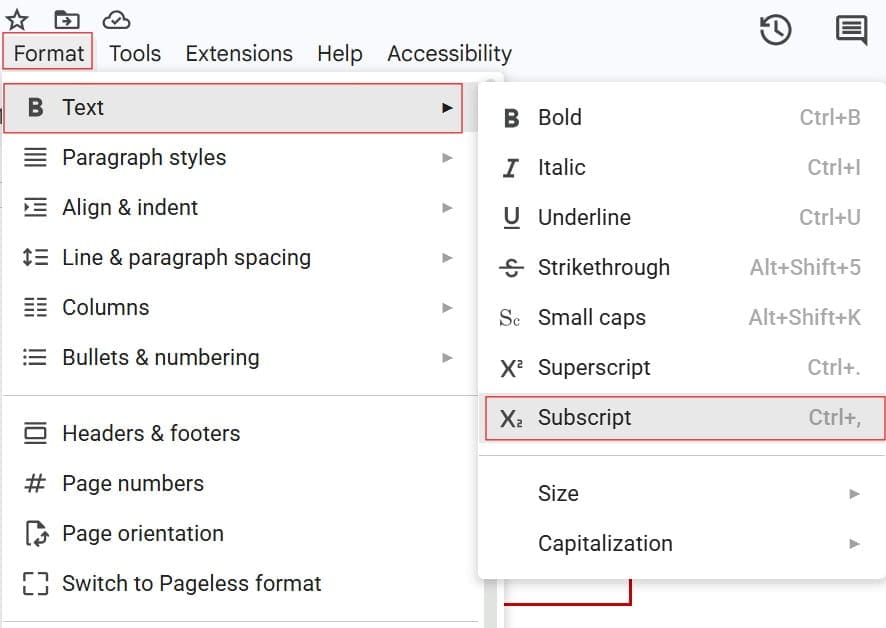
The selected character drops below the baseline and becomes smaller. To check it, click in another place and look at the result.
Select only the characters that need to move. If you highlight the whole word, “H2O” becomes “H₂O” with all three characters subscripted, which is wrong. This is the most common mistake.
Another good habit is to type the full formula first, then format it. For example, type C6H12O6, then select 6, apply subscript, select 12, apply subscript, and finally select the last 6 and apply subscript. For multi-digit numbers, select the full number so it moves together.
Pro Tip: After you apply subscript, press the Right Arrow key once and keep typing. If your next characters are also lowered, turn subscript off, as explained below.
Method 2: Use the Keyboard Shortcut
If you write many formulas, the shortcut saves time.
| Action | Windows / ChromeOS | Mac |
|---|---|---|
| Subscript | Ctrl+, (Ctrl and comma) | Cmd+, (Command and comma) |
| Superscript | Ctrl+. (Ctrl and period) | Cmd+. (Command and period) |
Here is how to use it while typing:
- Type
H. - Press
Ctrl+,to turn subscript on. - Type
2. It appears lowered. - Press
Ctrl+,again to turn subscript off. - Type
O.
You can also select existing text first, then press the shortcut. The shortcut toggles the format: pressing it a second time removes subscript from the selection.
Some keyboards or languages place the comma in a different position, and browser or extension shortcuts can conflict. If the shortcut does nothing, check the list at Help, then Keyboard shortcuts, or press Ctrl+/ (Cmd+/ on Mac) to see the shortcuts for your setup. For more speed-ups, see Google Docs keyboard shortcuts.
Pro Tip: Practice the toggle rhythm with
H, subscript,2, subscript,O. After ten or so repetitions, it becomes automatic.
Method 3: Insert a Subscript Character
Sometimes you cannot apply formatting, such as in a place that only accepts plain text. Unicode includes special subscript characters, like ₀ ₁ ₂ ₃ ₄ ₅ ₆ ₇ ₈ ₉. You can insert them as characters.
- Place the cursor where the character should go.
- Select Insert, symbols, then Special characters.
- In the search box, type “subscript” followed by the number, such as “subscript two”.
- Click the character that appears to insert it.
See the screenshot below for reference.
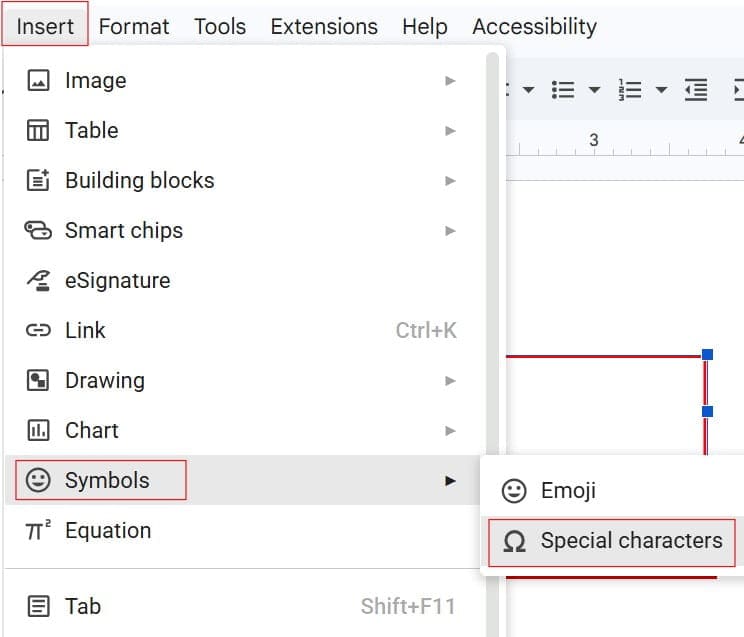
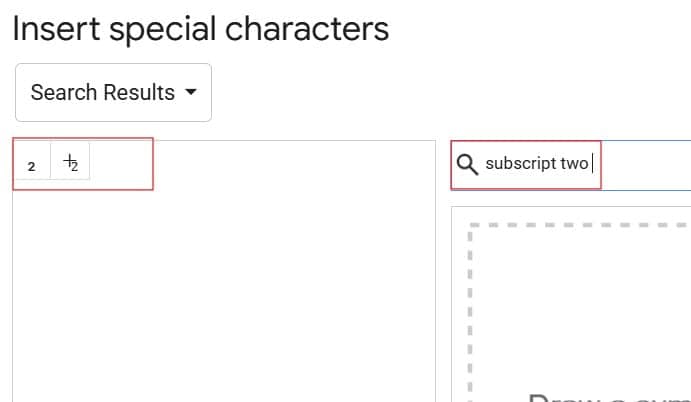
You can also draw a symbol in the search area or browse the categories. The guide to special characters in Google Docs explains this panel in more detail. For other symbols you may need in science writing, see how to type a degree symbol and how to type a delta symbol.
This method has trade-offs:
- Pros. The characters are real text. They copy into emails, forms, and plain text files without losing the lowered look.
- Cons. Coverage is limited. Many fonts support only digits, a few letters, and some symbols. If a font lacks a glyph, you may see an empty box or a substituted look.
- Search issues. The character ₂ is not the same as the digit 2. Searching for “H2O” will not find “H₂O”.Pro Tip: Use character subscripts for short labels and for text that will leave Google Docs. Use format-based subscripts for long documents you plan to keep editing.
Method 4: Use the Equation Tool
For heavier math, use the equation editor instead of formatting single characters.
- Place the cursor in the document.
- Select Insert, then Equation. A toolbar appears.
- Type your expression, using the toolbar for symbols and structures such as subscripts.
- Press
Enteror click outside the equation to finish.
Equations are best for formulas with fractions, roots, integrals, or multiple levels of subscripts and superscripts. Typing in the equation box follows its own rules, so check the toolbar’s options if you do not see the structure you need. For advanced equation editing and add-on options, read MathType in Google Docs.
Equations are objects. They look good, but they behave differently from normal text. They can be harder to search, and some export formats may flatten them into images. For a simple chemical formula in a paragraph, ordinary subscript formatting is faster and easier to edit.
Pro Tip: Use equations for stand-alone formulas and subscript formatting for formulas that flow inside sentences.
Use Subscript on a Phone or Tablet
You can also format subscript in the Google Docs mobile app.
- Open the document in the Docs app and tap the edit icon, if needed.
- Select the character or text.
- Tap the Format icon, shown as an A with lines.
- In the Text tab, look for the subscript button, which looks like an x with a small lowered 2.
- Tap it to apply or remove subscript.
Button positions differ across apps and devices, so look for the same icon if yours appears in a different place. Typing on a phone can be slow for long formulas. For major lab reports or math notes, a computer is easier.
Pro Tip: If the subscript button is hard to find on mobile, type the formula on a computer first, then edit text on your phone.
Remove or Fix Subscript
You can undo subscript quickly.
Remove it from selected text:
- Select the subscript text.
- Choose Format, then Text, then Subscript again to turn it off. Or press
Ctrl+,(Cmd+,on Mac).
Reset all formatting on a selection:
- Select the text.
- Choose Format, then Clear formatting, or press
Ctrl+\(Cmd+\on Mac).
Clear formatting removes more than subscript. It also removes bold, italic, font changes, and colors from the selection, so use it carefully.
Stop new text from staying lowered: If every character you type is subscripted, you left subscript on. Press the shortcut once to turn it off, or click the Right Arrow key to move out of the formatted run and check the Format menu.
If you used superscript by mistake, see how to undo superscript in Google Docs. Superscript is also what Docs sometimes applies to ordinals like “th,” which is explained in how to make “th” small in Google Docs. You can also copy formatting from a correct formula to others using how to copy formatting in Google Docs.
For a full walkthrough of the most common example, see how to write H2O in Google Docs.
Pro Tip: If you accidentally lower a whole paragraph, press
Ctrl+Z(Cmd+Zon Mac) right away. Undo is faster than selecting and fixing text by hand.
Subscript in Tables, Headings, and Footnotes
Subscript works almost anywhere text can be formatted.
- Tables. Select the character in the cell and apply subscript the same way. Tables are useful for formula lists. See how to make a table in Google Docs is not the right guide; for squared numbers, read how to put a squared number in Google Docs instead.
- Headings. Subscript works in heading text, and the heading style stays intact. Check how it looks in the outline panel and table of contents, since the lowered character may appear as normal text there.
- Footnotes. Subscript works inside footnote text as well.
- Find and replace. Search finds the underlying text, such as “H2O,” not the lowered look. You can search for the plain digit, but find and replace does not apply formatting on its own.
If you paste a formula from a website or another file, formatting may arrive in an odd way. Use paste without formatting to bring in plain text, then reapply subscript. If autocorrect changes your text, check how to stop Google Docs from auto-correcting.
Subscript is part of the document’s formatting, so it appears for everyone who can open the file. Sharing roles still matter:
- Viewer can read the formatted text.
- Commenter can add comments on formulas without changing them.
- Editor can change or remove subscript.
For a study group or lab team, use Commenter for reviewers and Editor for co-authors. Read Google Docs Commenter vs. Editor for the differences. Share with named people, check the recipient list, and avoid Anyone with the link for unpublished research or graded work, since links can be forwarded.
When you export, formatting behaves differently:
- PDF. Subscript stays exactly as it looks.
- DOCX. Subscript normally carries over to Word. See how to save as DOCX and check the result.
- Plain text. Formatting-based subscript is lost, and “H₂O” becomes “H2O.” Character-based subscripts may survive if the format supports Unicode.
- Copying into other apps. Rich text editors usually keep formatting, while plain text fields do not.
Accessibility deserves a thought. Screen readers may read “H₂O” and “H2O” differently, and some may not announce the lowered position at all. For critical content, spell out the name, such as “water (H₂O),” at least once.
If a formula disappears or changes by mistake, open File, then Version history, then See version history and restore an earlier version. Restoring replaces current content, so name the present version first. For missing files, see how to recover a file from Google Docs.
Troubleshooting Subscript Problems
Start with simple checks.
- Subscript is grayed out. You may have view-only access, or your cursor is in an area that cannot be formatted. Check your role.
- The shortcut does nothing. Your keyboard layout may use different keys. Use the Format menu or check the shortcut list.
- All my text is lowered. Subscript is still on. Select the text and turn it off.
- A character appears as a box. Your font does not support that Unicode subscript. Switch the font or use format-based subscript.
- The formula looks different in Word. Fonts and spacing can vary. Download a PDF for a fixed layout.
- Search cannot find my formula. Search sees the underlying characters, not the lowered look.
Frequently Asked Questions
How do I make subscript in Google Docs?
Select the character, then choose Format, then Text, then Subscript. You can also press Ctrl+, on Windows and ChromeOS or Cmd+, on a Mac. Press it again to turn subscript off.
How do I type H2O with a subscript 2?
Type H2O, select only the 2, and apply subscript from the Format menu or with the keyboard shortcut. The lowered number gives you H₂O. Select just the character that needs to move.
Why can’t I use the subscript shortcut?
The shortcut may differ on your keyboard layout, or a browser extension may use the same keys. Try the Format menu, check Help for the shortcut list, or confirm that you have edit access.
Does subscript work in Google Docs on my phone?
Yes. In the Docs app, select the text, tap the Format icon, and look for the subscript button in the Text tab. Button positions can vary by device.
Will subscript stay when I download a Google Doc?
In PDF and DOCX, it normally does. In plain text, formatting-based subscript is lost. Check the exported file before you send it.
Video Tutorial
You learned four ways to create subscript in Google Docs: the Format menu, a keyboard shortcut, special characters, and the equation tool, plus how to remove it and keep it when you export. The key habit is to select only the characters that need lowering and to check your exported file. For shared work, give reviewers only the access they need. I hope you found this article helpful.
You May Also Like
- Type alpha in Google Docs
- Fractions in Google Docs
- Type a beta symbol in Google Docs
- Google Docs for students
- Make a trademark symbol in Google Docs

I am Rajkishore, and I have over 14 years of experience in the Software Industry. For a long time, I have been using Google Docs, Google Drive, and Google Sheets for my document usage, and I am sharing all the tips and tricks, the challenges I have come across, and their solutions to use Google Docs for your day-to-day use. I hope you will learn from these practical Google Docs tutorials. Read more.