
You finish a six-page report, read it twice, and still miss a repeated word on page four. Your eyes skip over the mistake because they already know what the sentence is supposed to say. Hearing the text spoken out loud catches these errors, and it helps readers who learn better by listening.
If you search for a “Read Aloud” button, you may not find one. Google Docs does not have a single universal button for every user. The good news is that you can make Google Docs read aloud in three practical ways: Gemini audio on eligible plans, screen reader tools, and your device’s built-in speech features.
This guide explains each option, which accounts and devices support it, how to fix problems, and how to protect confidential documents.
Which Read-Aloud Option Fits You?
Pick the method that matches your account and device. Availability can vary by plan, language, browser, and administrator settings, so a menu you see on one account may be missing on another.
| Option | Where it works | What you need | Best for |
|---|---|---|---|
| Gemini audio (Listen to this tab) | Desktop browser | An eligible Google Workspace or Google AI plan; English | Natural-sounding voices |
| Screen reader support | Computer browser | Turn on in Accessibility settings | Accessibility and detailed navigation |
| Device speech tools | Windows, Mac, iPhone, iPad, Android | Built-in accessibility settings | Free listening without a plan |
| Browser extension | Chrome and similar | Install a third-party tool | Extra controls, with privacy trade-offs |
Pro Tip: Start with the free device tools. If they meet your needs, you avoid extra permissions and plan upgrades.
Method 1: Use Gemini Audio in Google Docs
Google has added an audio feature powered by Gemini. It reads a document tab aloud with a natural-sounding voice. This feature requires an eligible Google Workspace or Google AI plan, and at the time of Google’s announcement it was limited to English and desktop use.
Your admin may also control related Gemini settings. If you don’t see the menu, your account probably isn’t eligible yet.
Follow these steps on a computer:
- Open your document in Google Docs. It needs content before audio can be generated.
- Select Tools in the menu bar.
- Choose Audio, then Listen to this tab. You may also see a Listen to this tab button in the toolbar.
- Wait a moment while Docs prepares the audio. An audio player appears.
- Use the player to pause, resume, or adjust playback speed. Select More to change the voice, if options appear.
If your plan includes it, you may also see Listen to document summary under the same menu. It gives a short spoken overview instead of reading every line. That helps when you want to catch up on meeting notes quickly, but it is not a substitute for proofreading, because it summarizes instead of reading word for word.
Authors can add a play button inside the document through Insert, then Audio buttons. Readers with access can then start the audio from the document. Keep in mind that sharing permissions still apply, so only people who can open the file can use the button.
Why this matters: a tab is a section of a Google Doc listed in the left panel. The feature reads the current tab, not the whole document if you use several tabs. Switch tabs and run it again for each one.
Pro Tip: Use audio on your near-final draft, then fix awkward phrases and repeated words as you hear them. Pause and correct before you continue, so you don’t lose your place.
Method 2: Turn On Screen Reader Support
A screen reader is software that reads on-screen content aloud. It is designed for people who are blind or have low vision, but anyone can use it to proofread. Docs has its own accessibility settings that work with common screen readers.
- Open a document.
- Select Tools, then Accessibility settings.
- Check Turn on screen reader support, then select OK.
Check out the screenshot below for your reference.
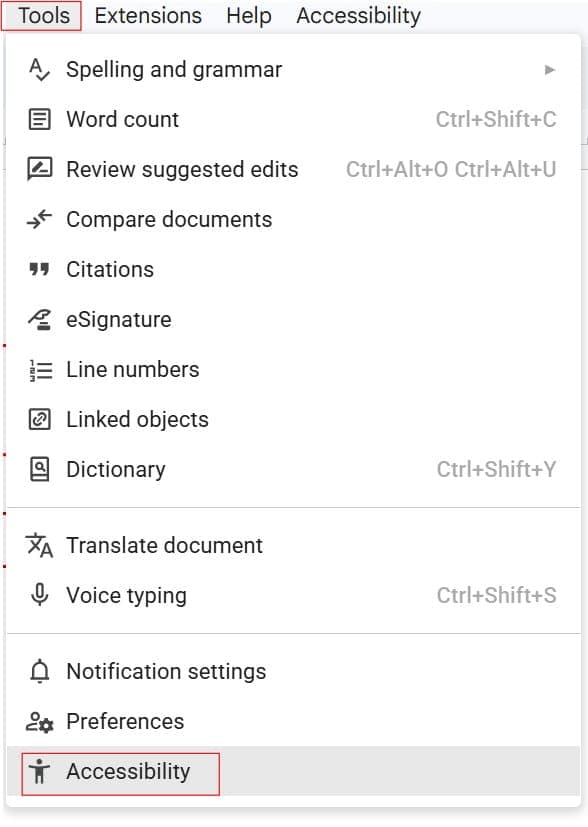
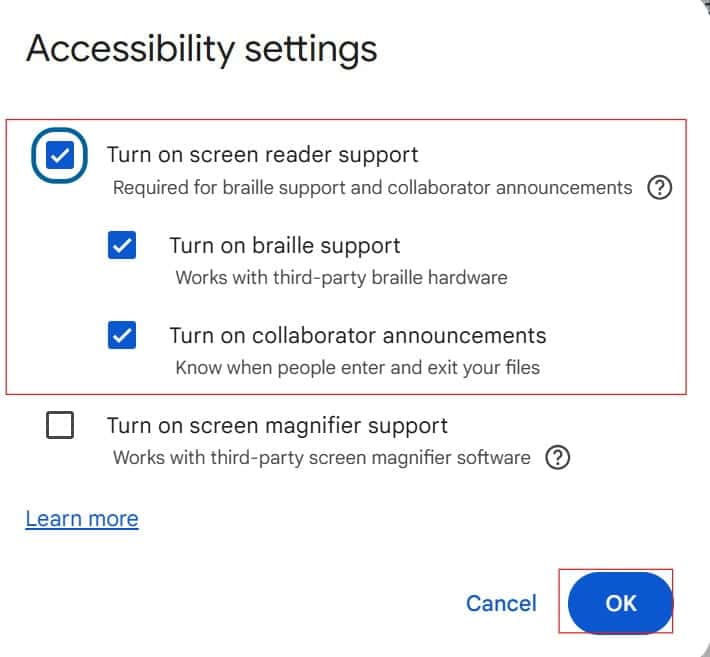
You can also use the shortcut Ctrl+Alt+Z on Windows and ChromeOS, or Cmd+Option+Z on a Mac. After you enable it, an Accessibility menu may appear in the menu bar. In some setups, this menu includes speaking options such as speaking the selected text. What you see depends on the screen reader and browser you use.
Next, pair it with a screen reader:
- Chromebook: ChromeVox is built in. Turn it on in the device’s accessibility settings, and Docs support works with it.
- Windows: Narrator is built in and can be started with
Windows+Ctrl+Enter. Other screen readers, such as NVDA or JAWS, also work with Docs. - Mac: VoiceOver is built in. Screen reader support in Docs works with it.
A screen reader reads menus, buttons, and navigation along with your text, so it can feel verbose if you only want to proofread. It also changes how you move through the document. If you are new to it, start with short passages. The trade-off is clear: you get strong accessibility and control, but a steeper learning curve than a simple play button.
Since structure matters for listeners, use heading styles in your documents. Screen readers use headings to jump between sections. Add alt text to images, and use descriptive link text such as “project budget” instead of “click here.” Learn more about faster navigation in Google Docs keyboard shortcuts.
Pro Tip: Before you share a document with people who use screen readers, test it yourself. Listen for missing alt text, empty headings, and confusing table layouts.
Method 3: Use Your Device’s Built-In Speech Tools
Your computer or phone can read selected text aloud, even when Google Docs has no audio feature of its own. These tools are free and need no special plan.
On Windows:
- Open the document in Chrome or Edge.
- Press
Windows+Ctrl+Enterto start Narrator. - Use Narrator’s commands to read the page. Press the same combination to stop it.
On a Mac:
- Open System Settings, then Accessibility, then Spoken Content.
- Turn on Speak selection, and note or set the shortcut.
- Select text in Docs and press that shortcut.
Menu names can vary with the macOS version.
On iPhone or iPad:
- Open Settings, then Accessibility, then Spoken Content.
- Turn on Speak Selection.
- In the Docs app, select text and tap Speak when the option appears.
On Android: Android has accessibility tools such as Select to Speak and TalkBack. Setup steps differ by phone brand, so see how to make Google Docs read aloud on Android for a walkthrough.
These system tools read what is on the screen or what you select. They don’t know Docs’ structure as well as a screen reader does, but they are simple. The voice quality also depends on the voices installed on your device.
Pro Tip: Select one section at a time instead of the whole document. It makes it easier to stop, fix a sentence, and continue.
Use Extensions and Add-ons Carefully
Chrome extensions and Docs add-ons can read text aloud with extra voices and controls. If you want one, check the permissions first. A tool that can read your page can also see its content.
Follow these rules:
- Install only tools from publishers you trust, and read the privacy information.
- Avoid extensions that ask for access to all websites if you only need Docs.
- Do not use third-party tools with confidential documents, such as contracts, student records, or health information.
- Check whether your school or company allows extensions. Administrators often restrict them.
If you want to understand where add-ons live in the interface, read where add-ons are in Google Docs. Remember that an add-on works inside the document, while an extension works in the browser.
Pro Tip: Try the built-in and system options first. Each extra tool is another party that may see your text.
Prepare Your Document for Better Listening
Text-to-speech reads exactly what is on the page. Messy formatting makes the audio confusing. A few fixes make a big difference:
- Use heading styles. Apply Heading 1, Heading 2, and so on instead of bold text. This helps navigation.
- Remove extra spaces and blank lines. Empty paragraphs can create long pauses. See how to remove extra spaces in Google Docs and how to show formatting marks to find hidden breaks.
- Spell out unusual symbols. Some symbols and abbreviations are read oddly. Check special characters in Google Docs if you use many.
- Keep tables simple. Complex tables can be confusing when read aloud, so add a short sentence explaining the main point.
- Check autocorrect. Automatic changes can alter what you hear. Learn how to stop Google Docs from auto-correcting if it interferes.Pro Tip: Read aloud works best as a second proofreading pass after you check spelling and grammar. The two catch different problems.
If you send a document to classmates or colleagues who want to listen, set permissions with care. Select Share, add named people, and choose Viewer, Commenter, or Editor.
Give the lowest role that meets the need. Viewers can read and listen but cannot change the file. See Google Docs Commenter vs. Editor and how to make a Google Doc view-only.
Be careful with General access. Anyone with the link can expose a file to people you did not intend, and a school or company administrator may restrict it anyway.
Check the recipient list before you send, especially for documents with personal or business information. If you manage a team, Google Docs for business covers admin policies that can affect features like audio and add-ons. Students can also read Google Docs for students for school-account tips.
Pro Tip: If you add an audio button, remember it makes the document easier to use, not more private. Access still depends on the share settings.
Troubleshooting Read-Aloud Problems
Start with simple checks, then move to deeper ones.
- No Audio menu. Your plan, language, or admin settings may not support Gemini audio. Try screen reader support or device tools.
- No sound. Check your device volume, the browser tab’s mute setting, and your output device.
- Reads the wrong section. The audio feature reads the current tab. Switch tabs or select the passage for device tools.
- Screen reader reads menus too. That is normal. Use selected-text speech tools if you only want the document text.
- Feature stops or lags. Refresh the page, close extra tabs, and update your browser. If Docs freezes, see why Google Docs keeps crashing.
- Extension doesn’t read. Check that it is enabled for Docs and that you are not in a private window that blocks extensions.
- Works at home, not at school. Administrators may disable features or extensions.
Offline use depends on the tool. Device speech tools can read text you already have on screen, but cloud-based features need a connection. If you want the document available without Wi-Fi, set it up first using how to make Google Docs available offline.
Frequently Asked Questions
Does Google Docs have a read-aloud feature?
It depends on your account. Eligible Google Workspace and Google AI plans have a Gemini audio feature under Tools, then Audio. Without it, you can use screen reader support or your device’s speech tools.
How do I make Google Docs read aloud on my phone?
Use your phone’s accessibility tools, such as Speak Selection on iPhone and iPad or Select to Speak on Android. The Gemini audio feature was described as desktop-only when announced, so check current availability. Steps vary by device.
Why can’t I see Listen to this tab?
Your plan, language, or administrator settings may not include it. The feature requires an eligible account and has been limited to English. Try screen reader support or a device tool instead.
Is voice typing the same as read aloud?
No. Voice typing turns your speech into text. Read aloud does the opposite and turns text into speech.
Can I download the audio from Google Docs?
Do not assume you can. The built-in listening tools are designed for playback, and available options can change. If you need an audio file, check what your account allows and avoid sending confidential text to third-party converters.
You learned three ways to hear your document: Gemini audio on eligible plans, screen reader support, and built-in device tools. Clear heading styles and careful sharing make listening easier for everyone, so check permissions and avoid third-party tools for confidential files. I hope you found this article helpful.
You May Also Like
- How to turn on dark mode in Google Docs
- How to zoom out in Google Docs
- How to change the view in Google Docs
- Spacing between words in Google Docs
- How to turn on auto-capitalization in Google Docs

I am Rajkishore, and I have over 14 years of experience in the Software Industry. For a long time, I have been using Google Docs, Google Drive, and Google Sheets for my document usage, and I am sharing all the tips and tricks, the challenges I have come across, and their solutions to use Google Docs for your day-to-day use. I hope you will learn from these practical Google Docs tutorials. Read more.