

Have you ever thought of circling something in Google Docs? Do you know exactly how to circle something in Google Docs? You have landed on the right page.
Table Of Contents
How to circle a word in Google Docs
Now we will become wise on how to circle words in Google Docs in clear steps.
- Open the Google Docs document where you want to circle a text or you can navigate to https://docs.google.com/ and click on the Blank (+) to create an empty document.

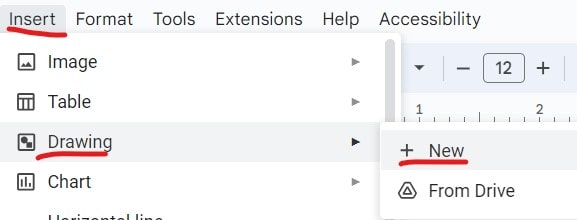
2. Click on the Insert menu –> Select Drawing –> click on the + New button.

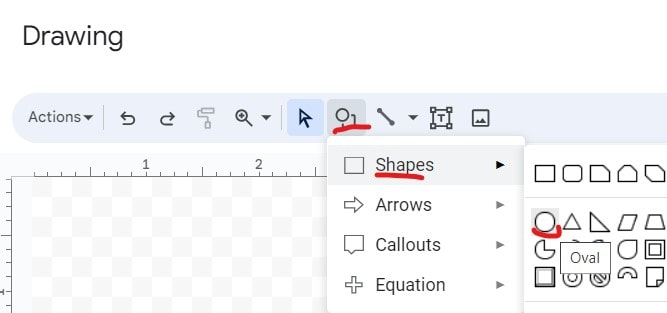
3. On the Drawing window, click on the Shape option –> Select Shapes –> click on the Oval shape and draw the circle on the empty area. To create a perfect circle, make sure the width and height are equal.

Now, the circle will look like below.

4. Now, inside the circle, we will fill the color transparent. To do that, double-click inside the circle –> click on the fill color option –> choose the transparent option. This will make the circle transparent.

5. Click inside the circle and type the text you want to circle.

Customizing the circle text in Google Docs
Now, you can customize the circle and text based on your needs.
Let’s increase the width of the circle line. To do that, select the circle, click on the Border weight option, and Select the pixel based on your needs.

Well, let’s make the text bold and we will also align the text to the center.
For this, select the text and click on the more (…) option. Then click on the B option to make the text bold. Finally, from the align dropdown, select the Center option.

If you want to increase the font size of the text for a better look, you can click on the + (Increase font size) option as highlighted below.
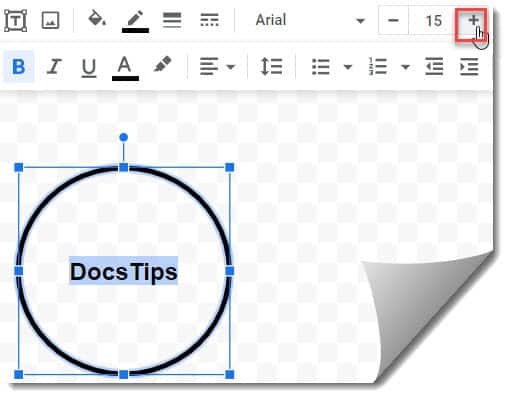
6. Finally, once you are done with all the customization, click on the Save and Close button to save the changes to Google Docs.

Now there is a circle with the word inside it. With keeping in mind all of the rules mentioned above, let’s start circling a word in Google Docs by using all the fonts and tools offered by Google Docs.
How to circle a number in Google Docs
Like above, you can easily circle a number in Google Docs using the steps below.
To circle a number in Google Docs, follow the below steps.
1. To do so, navigate to the menu bar at the top of the screen and click ‘Insert’ > “Drawing” > “New.” Now, the drawing dashboard has been opened.
2. From the drawing dashboard, navigate to the toolbar at the top of the screen and click ‘Shape’ > “Oval.”
3. To create a perfect circle, make sure the width and height are equal. If you directly want to create a perfect circle, press shift and draw a circle. The circle drawn in this way will have a perfect circle.
4. If you don’t want any color inside the circle, click “fill color” > “Transparent.” This will make the circle transparent.
5. If you want to fill any color, click “Fill color” and you can also use gradient which will be very impressive and attractive. You can also customize the gradient by clicking customize icon at the bottom of the “Fill color”.
6. Inside the circle, double-click with the mouse and enter the number you want. To bring the number at the center of the circle, select the number and click the more icon (three dots at the top right-most corner). Click the “Align” icon > “Center.”
7. Select the number and click “Ctrl+B” to make the number bold. You can also change the color of the number by clicking “Text color” and choosing the color you want.
8. Click the “Font” icon to change the font. The “Comfortaa” font is the perfect choice for numbers.
9. You can also increase the circle border size by selecting the border weight and clicking “4px”. Check out the screenshot below.

10. You can also make the circle border a dotted or dashed circle border by clicking the “Border dash.” You can also add color to the border of the circle. To do so, navigate to the menu bar click on the border-color icon, and then select the color as per your wish.
11. After completing all the requirements, click “save and close” in the blue button on the top right corner.

How do I circle an image in Google Docs?
In the same way, it’s quite easy to circle an image in Google Docs. Follow the below steps to draw a circle around an image in Google Docs quickly.
1. Open Google Docs and sign in to your Google account.
2. On top, you can see many menus like File, View, Edit, and Insert, depending on your assigned privilege. Hit the “Insert” menu, and it opens a popover showing various function options that you can do. You can find “Drawing” in the middle and tap the right arrow to get the “New” option.
3. Now, the “Drawing” dashboard popup window with drawing tools is opened. The image icon is at the right-most corner of the toolbar. Click the “image icon.” Under the options Upload, By URL, Your Albums, Google Drive, and Search, you can select the image to circle in Google Docs.

4. On the Insert Image window, click the Choose an image to upload button to insert an image, or drag and drop the image to insert.

5. The image you want to circle is opened in the drawing canvas. You can bring the image to the center of the canvas.

6. To circle the image, click on it and then select the “mask image,” which is shown in the downward arrow mark near the “crop image” tool. Now, you can see the option “Shapes.” Under “shapes,” you will see “Oval.” Click on it.

7. Now, the image will be converted into a circular shape. You can also make the border thicker or thinner by clicking on the Border weight icon and selecting your desired border weight. The preferable border thickness is “4px.”

8. You can also make the image’s circle border a dotted circle border by clicking the “Border dash.” You can also add color to the border of the circle. To do so, navigate to the menu bar, click on the border-color icon, and then select the color you wish.
9. You can also resize the image by dragging in and out of the corners. Just double-click on the image and drag the black tabs to your desired size. Make sure you drag the black tabs and not the blue nodes because black tabs will change the size of your picture. If you mistakenly pull the blue nodes, just hit “Ctrl + z” to undo and try again.
10. To create a mirror image, just copy and paste the image. Drag the middle dot on the right side to 180 degrees. You can also rotate the image by clicking the topmost dot.

11. To avoid stretched images, make sure your image has equal proportions. To do this, go to “Format” in the menu bar. Select “Align & indent” and click the center (Ctrl+Shift+E), making sure the height and width are equal.
12. After completing all the requirements, click “save and close,” which is the blue button at the top right corner.
FAQs
Can you circle a word in Google Docs
Yes, you can use the above information.
You may also like following the articles below
- How To Insert A Text Box In Google Docs
- How To Add A Border In Google Docs
- How to wrap text in Google Docs- Step-by-Step
- How to insert an image behind the text in Google Docs
- How to center text in Google Docs (How to center text vertically in Google Docs)
Wrapping Up
Well, in this article, we have discussed how to circle something in Google Docs.

I am Rajkishore, and I have over 14 years of experience in the Software Industry. For a long time, I have been using Google Docs, Google Drive, and Google Sheets for my document usage, and I am sharing all the tips and tricks, the challenges I have come across, and their solutions to use Google Docs for your day-to-day use. I hope you will learn from these practical Google Docs tutorials. Read more.