
Opening night is in three days, and the program is still a mess. The director’s note runs onto a second page, two cast names are misspelled, and the printer shop says the file looks different from what you emailed. Everyone has edited a different copy.
A reusable playbill template in Google Docs fixes that. A playbill is the printed program handed to an audience, with the show title, cast, crew, notes, and thanks. You build the layout once, copy it for each production, and let the whole team review the same document. Google Docs is the editor, and Google Drive holds the files, so the director, stage manager, and designer all see the latest version.
This guide covers the page setup, cover, cast and crew tables, columns, printing, sharing, and the privacy points that matter when you publish names and photos.
Plan the Playbill Before You Design
Decide the size, page count, and contents first. Layout problems usually start with content that was added late.
Most playbills include:
- A cover with the show title, dates, venue, and a poster image
- A cast list with roles
- A crew and production team list
- A director’s note
- A short synopsis, scene list, or musical numbers list, if appropriate
- Acknowledgments, sponsors, and advertisements
- Upcoming events or donation information
Printers prefer pages in multiples of four for folded booklets. A folded sheet creates four pages, so plan for 4, 8, or 12 pages. Check with your print shop about paper size, margins, and file type before you design. Also check your performance license, which may require specific credit lines or notices on the program.
Pro Tip: Ask your printer for their specifications before you start. Fixing margins after you finish the design costs far more time than asking first.
Set Up the Page Size and Margins
Many programs are half-letter size, which is a letter sheet folded in half. Docs has several ways to handle this.
- Open a Blank document.
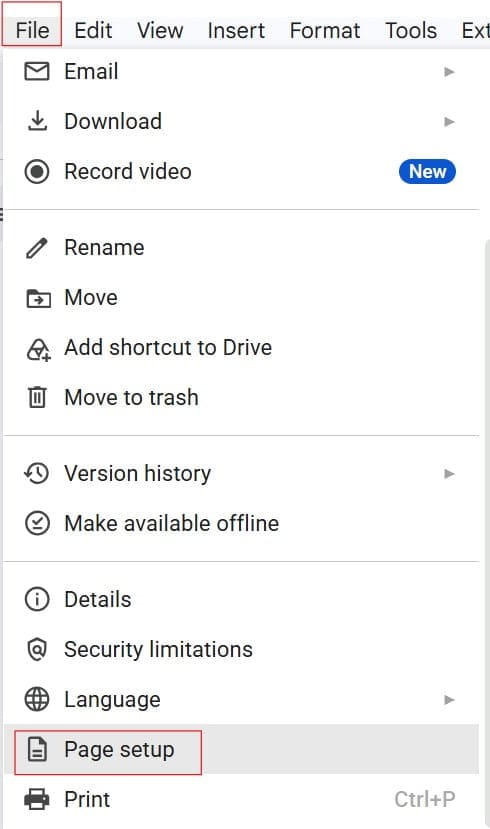
- Select File, then Page setup.
- In the Pages tab, choose the page size. If a custom size option appears for your account, enter the finished page size, such as 5.5 inches by 8.5 inches. If it does not, use Letter or another listed size. See Google Docs page size for help.
- Set margins around 0.5 to 0.75 inches. Printers cannot print to the paper edge, so very small margins risk clipped text. Read how to change margins in Google Docs for details.
- Select OK.
Check out the below screenshot for your reference.
Page size and margin controls do not apply in pageless format, so use paged layout for a printed playbill.
If a custom size is not available, an alternative is to use a landscape Letter page and divide it into two columns, where each column acts as one program page. The guide to creating a booklet format in Google Docs explains this approach and its limits. Either way, test your layout with a printed sample.
Pro Tip: Print one sample page at actual size and fold it. Reading the text in your hand shows problems a screen hides.
Design the Cover Page
The cover sets the tone and should work from a distance.
- Type the show title on its own line and apply the Title style from the styles dropdown. Choose a clear font and large size.
- Add the venue, dates, and company name in smaller type below it.
- Select Insert, then Image, then Upload from computer to add the poster or logo.
- Resize the image with the corner handles to keep its proportions.
- Center the elements. See how to center text in Google Docs and how to center an image in Google Docs.
If the image has extra space around it, trim it with the crop tool, as explained in how to crop a picture in Google Docs. For a color or image behind the cover text, read about backgrounds in Google Docs. Backgrounds can look great on screen, but they often print with a white edge and use a lot of ink, so test them. A thin frame is safer; see how to add borders in Google Docs.
Use image rights carefully. Only include artwork, photos, and logos you have permission to use. Add alt text to the cover image: right-click it and choose Alt text, then write a short description such as “Poster for the spring musical.”
Pro Tip: Use a high-resolution image. A picture that looks fine on screen can print blurry on paper.
Build the Cast and Crew Lists With Tables
Tables keep names and roles lined up. Plain spaces drift apart as soon as the font changes.
- Add a heading such as Cast (apply Heading 1).
- Select Insert, then Table, and choose 2 columns by the number of roles you need.
- Put the role in the left column and the performer in the right column.
- Right-click the table, choose Table properties, and set the border width to 0 for a clean look.
- Adjust column widths by dragging the divider.
For help, see how to make a table in Google Docs. Use the same method for the crew list, with roles such as Director, Stage Manager, Lighting Design, and Costumes.
For a long cast, put two groups side by side using a four-column table, or flow the text into columns. See how to make multiple columns in Google Docs. Keep the order consistent. Many productions list cast in order of appearance or alphabetically, so choose one rule and apply it to everyone.
Accuracy matters more than anything else on a playbill. Misspelled names are the most common complaint. Ask each person to confirm their name, role, and bio in writing.
Pro Tip: Use Find and replace for repeated terms, such as the venue name. If you change them later, you won’t miss one. Press
Ctrl+Hon Windows and ChromeOS orCmd+Shift+Hon a Mac.
Add the Director’s Note, Synopsis, and Credits
Written pieces need a clear hierarchy so patrons can scan them before the show starts.
- Use Heading 2 for section titles like “Director’s Note” and “Special Thanks.”
- Keep paragraphs short, and use a readable body font at 10 to 12 points. Very small type is hard for many audience members.
- Left-align the text. Justified text can create uneven gaps between words.
- Use a page break before a major section so it starts on a fresh page. Use Insert, then Break, then Page break.
For credits, check your licensing agreement. Rights holders often require exact wording, such as a licensing notice or a statement about the original work. Missing it can create legal problems for your group. Copy the required text exactly from the license, then paste it in.
Sponsors and advertisements add a little more design work. Create a simple grid or table with each business name and a short line, or place logos in table cells for tidy alignment. Get permission before you use a business logo.
Pro Tip: Write the director’s note to fit in half a page. Long notes crowd the layout and few people read them in the lobby.
Reorder, Print, and Export
When your content is complete, check page order. Booklet printing is easy to get wrong.
If you need to move whole pages, see how to rearrange pages in Google Docs. Be aware that Docs does not move pages as visual blocks. It moves the text, so check the result.
To print:
- Open File, then Download, then PDF Document (.pdf).
- Open the PDF and check every page for cut-off text, missing images, and awkward page breaks.
- Send the PDF to your print shop. Ask whether they want single pages in reading order or a different arrangement.
For home or office printing, you can try printing multiple pages per sheet. Learn how to print multiple pages on one page in Google Docs and how to print 2 PDF pages on one sheet. Printer dialogs and options vary by operating system, so a booklet setting may be in a different place on your computer. If printing fails, read why you can’t print from Google Docs.
Remember that a downloaded PDF is separate from the Google Doc. If you fix a typo in the Doc after you export, the PDF stays the same. Re-export every time, and put a date in the file name, such as Playbill-Spring-Musical-Final-2026-10-28.pdf.
Pro Tip: Print one proof copy on the same paper and printer type you plan to use. Colors and margins can look different from the screen.
Save the Template and Reuse It
Once the layout works, turn it into a master.
- Replace names and dates with placeholders, such as
[Show Title]and[Director Name]. - Name the file
Playbill-Template-Master. - Store it in a Drive folder such as
Theater / Templates. - For each production, select File, then Make a copy, and rename it with the show name and season.
Never edit the master directly. If you overwrite it, open File, then Version history, then See version history, and restore an earlier version. Restoring replaces current content, so name the present version first. If a file goes missing, try recovering a file from Google Docs.
Workspace organizations may add shared templates to a gallery so every school club can use them. Availability depends on your plan and admin settings.
Pro Tip: Keep a “Version for large print” copy. Larger type helps audience members with low vision, and you can offer it at the door.
A playbill needs many reviewers, but not many editors. Use Share and give each person the lowest role that works.
| Role | What the person can do | Best use |
|---|---|---|
| Viewer | Read only | Sponsors checking an ad |
| Commenter | Read and comment | Cast confirming names and bios |
| Editor | Change content | Director, stage manager, designer |
Learn more in Google Docs Commenter vs. Editor, and see how to make a Google Doc view-only for final proofs. Suggesting mode, in the editing mode dropdown near the top right, lets reviewers propose changes that the owner accepts or rejects.
Privacy matters in a program. A playbill can include names, photos, school information, and bios. For student productions, follow your school’s rules about publishing names and photos, and get consent where required. Avoid phone numbers, home addresses, and personal emails.
Share the draft with named people, not Anyone with the link, since links can be forwarded and may expose the draft outside your group. Administrators at schools and organizations may restrict external sharing, so some options may be blocked.
Pro Tip: Set a proofing deadline and lock editing afterward by changing most people to Viewer. Last-minute edits are the main source of printed errors.
Frequently Asked Questions
Does Google Docs have a playbill template?
Your template gallery may not include one, and options vary by account. You can build your own with a table-based cast list, headings, and a cover, then save it as a master and copy it for each show.
What size should a playbill be?
Many programs are half-letter, which is a letter sheet folded in half. Others use full letter or A5. Ask your printer before you design.
How do I print a Google Docs playbill as a booklet?
Export a PDF and ask your print shop to arrange the pages as a booklet. For home printing, look for a booklet or multiple-pages-per-sheet option in your print dialog. Test with a draft first.
How do I let cast members check their bios?
Share the document with named people as Commenter. They can leave comments without changing the text. Resolve each comment before you export.
Can I stop people from changing the final playbill?
Yes. Change everyone except the editors to Viewer, or export a PDF and share that instead. Remember that anyone who can view the file may still make a copy.
You learned how to set up page size and margins, design a cover, build cast and crew tables, handle credits, and export a print-ready PDF. The key habit is to collect written confirmation of names, share drafts with named people at the lowest role they need, and re-export the PDF after every change. I hope you found this article helpful.
You May Also Like
- Google Docs newsletter template
- Magazine template in Google Docs
- How to make a flyer in Google Docs
- Agenda template in Google Docs
- Certificate template in Google Docs

I am Rajkishore, and I have over 14 years of experience in the Software Industry. For a long time, I have been using Google Docs, Google Drive, and Google Sheets for my document usage, and I am sharing all the tips and tricks, the challenges I have come across, and their solutions to use Google Docs for your day-to-day use. I hope you will learn from these practical Google Docs tutorials. Read more.